

Overview
This guide walks you through adding the Quartr dataset from the Snowflake Marketplace. The process takes a few minutes and requiresACCOUNTADMIN role or equivalent import privileges.
1
Find your account identifier
Click your username in the bottom-left corner of Snowflake, then hover over your account name and click View account details.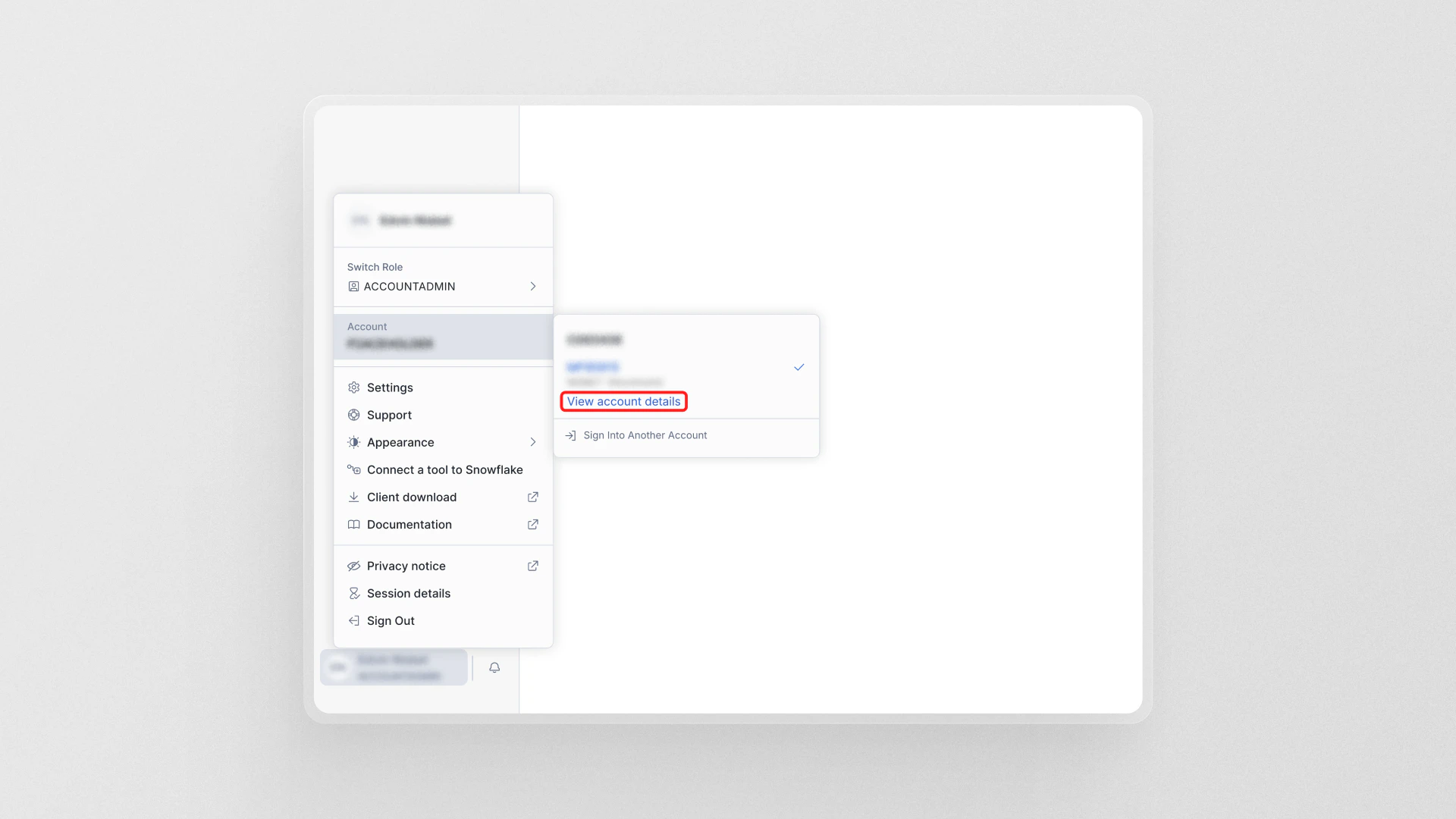
2
Copy your data sharing account identifier
In the Account Details dialog, locate the Data sharing account identifier row and copy the value. You’ll need this to share with Quartr.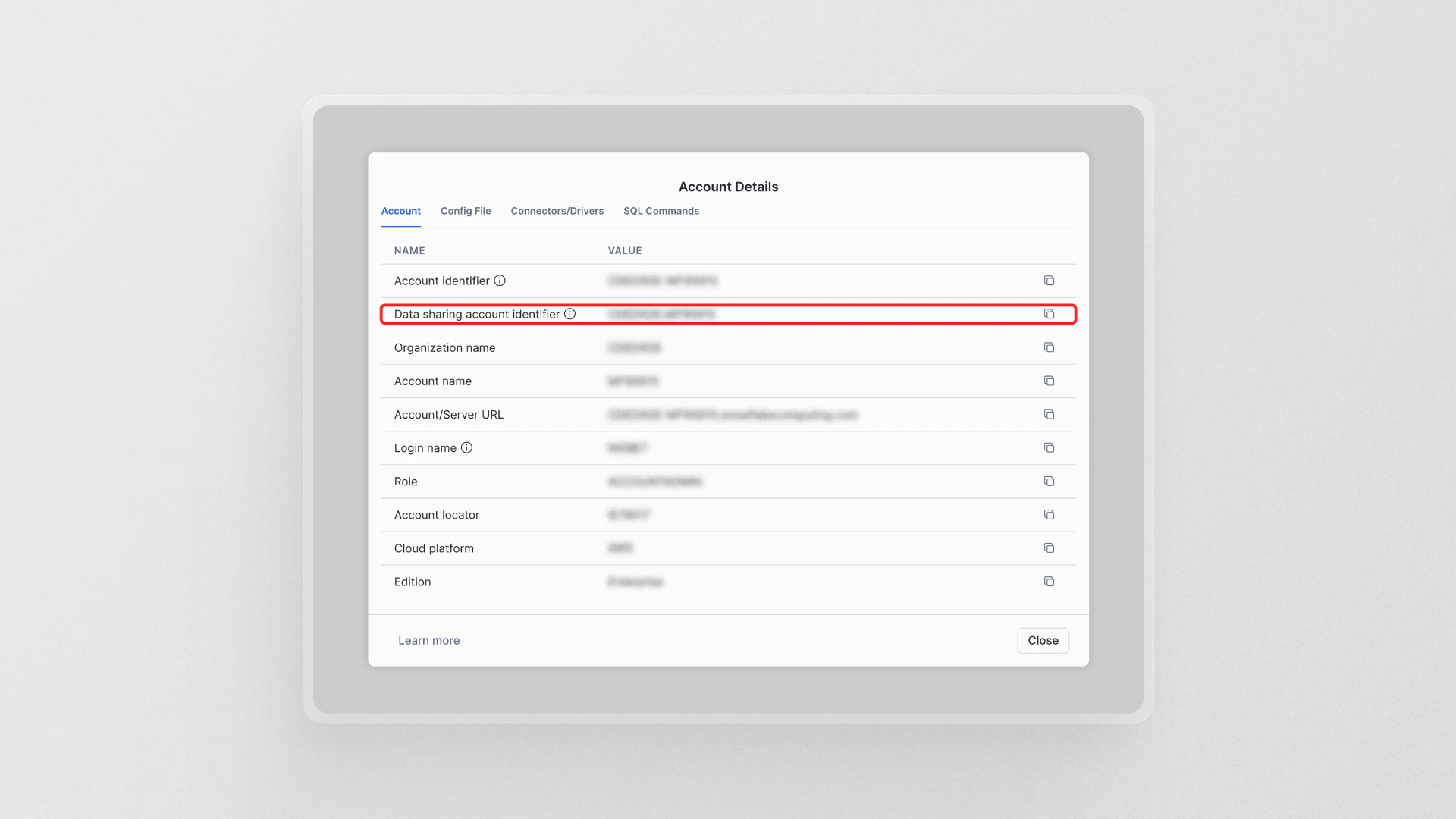
3
Open the Snowflake Marketplace
In the left sidebar, expand Marketplace and click Snowflake Marketplace.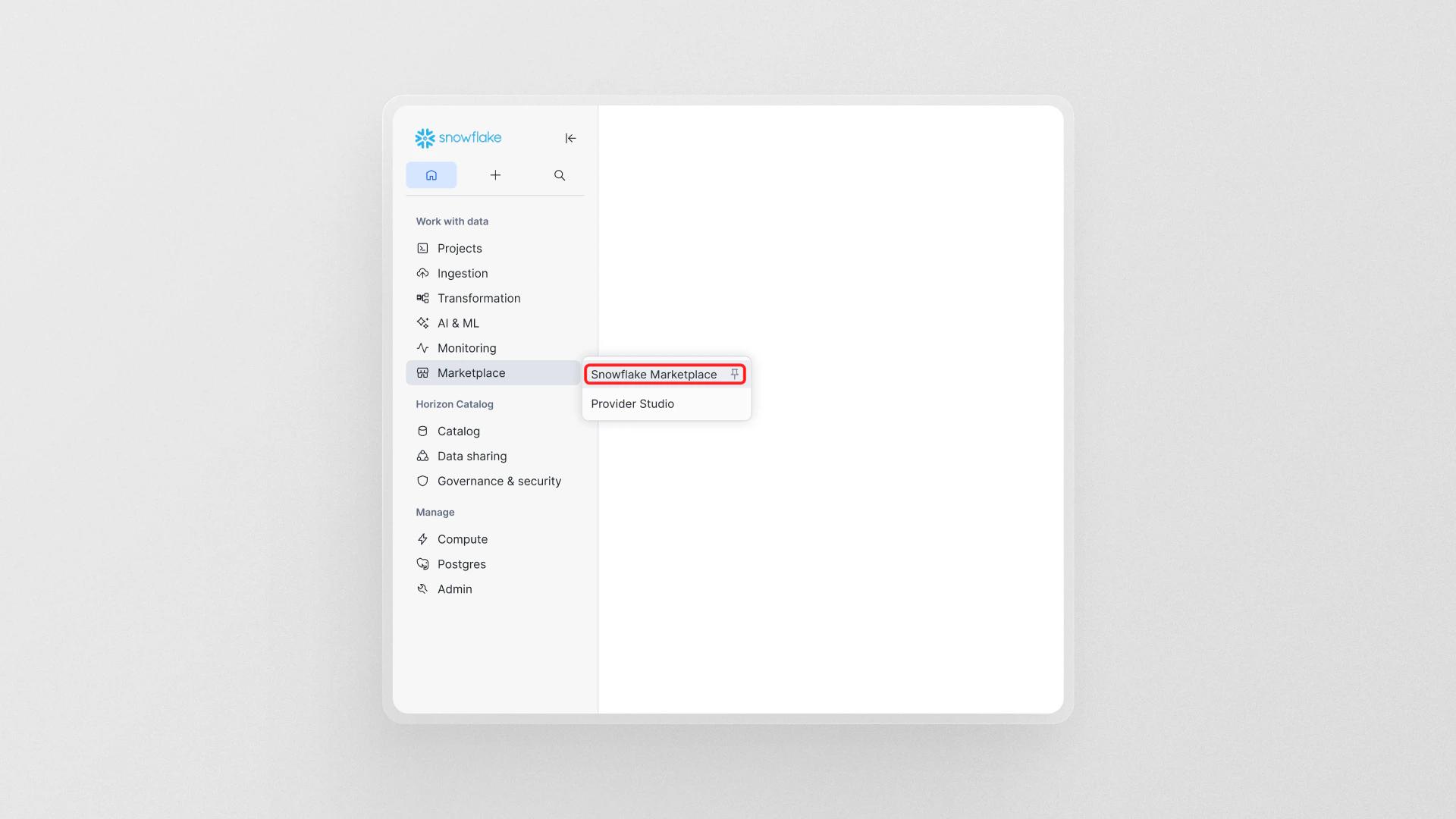
4
Search for Quartr
In the marketplace search bar, type quartr. Select the Quartr listing published by Quartr AB.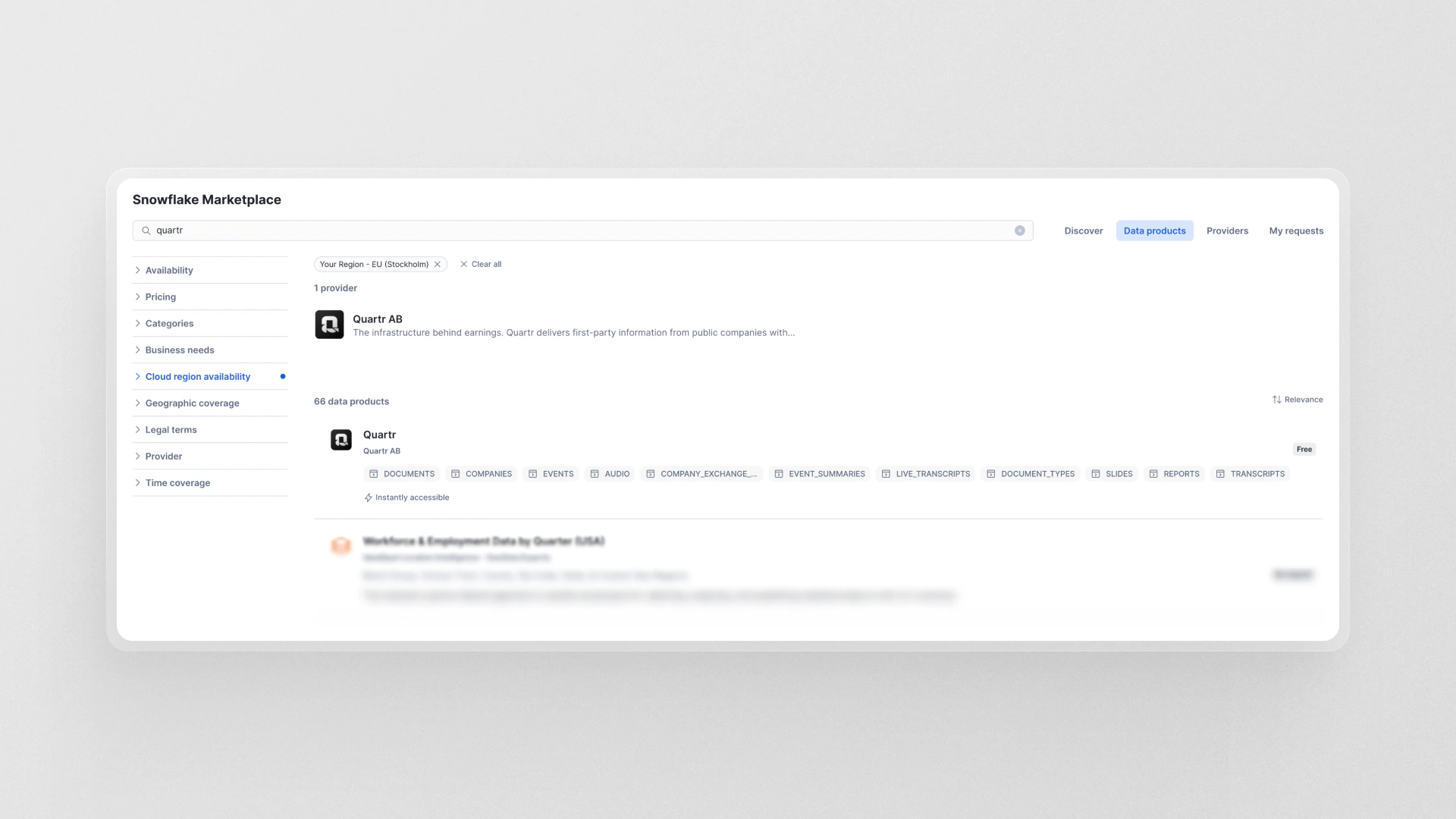
5
Click Get on the listing
On the Quartr listing page, click the Get button in the top-right corner.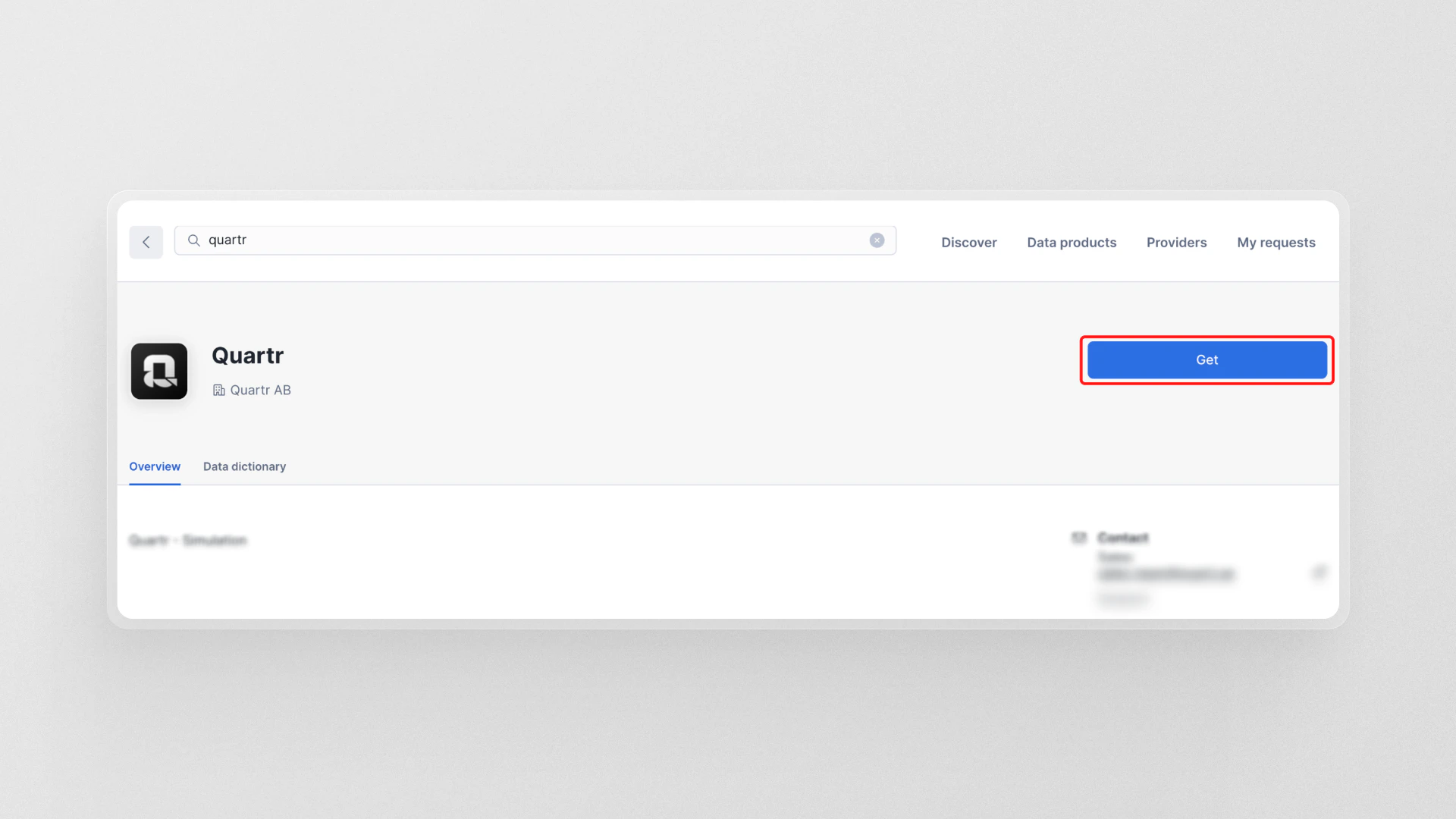
6
Review the sharing details
A dialog will appear confirming that the dataset is Shared Privately with You and is Ready to Query with No Storage Cost. Click Options to configure the database before proceeding.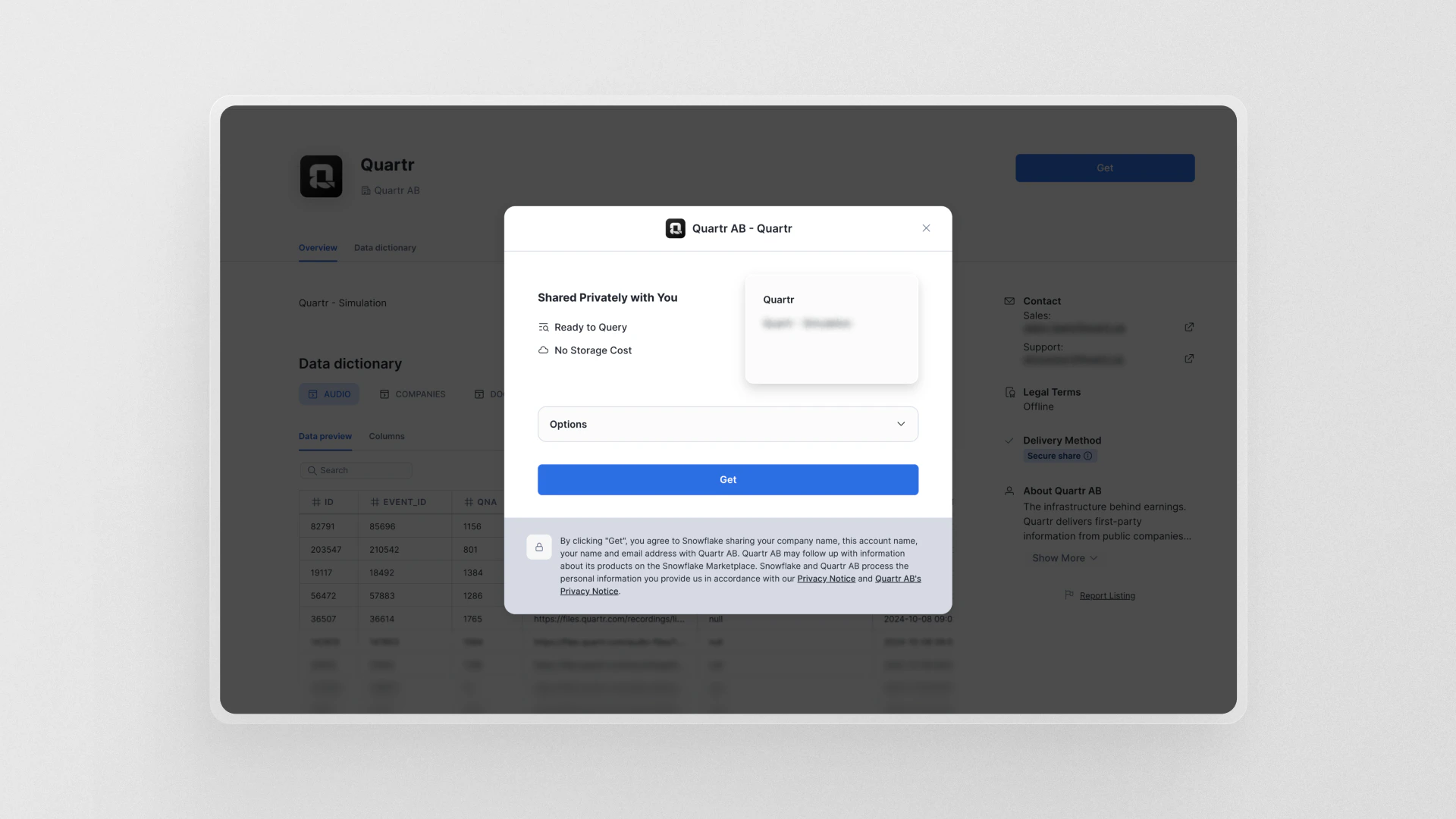
7
Configure database name and role access
Set a Database name for the Quartr data in your account. Optionally, add any roles (beyond 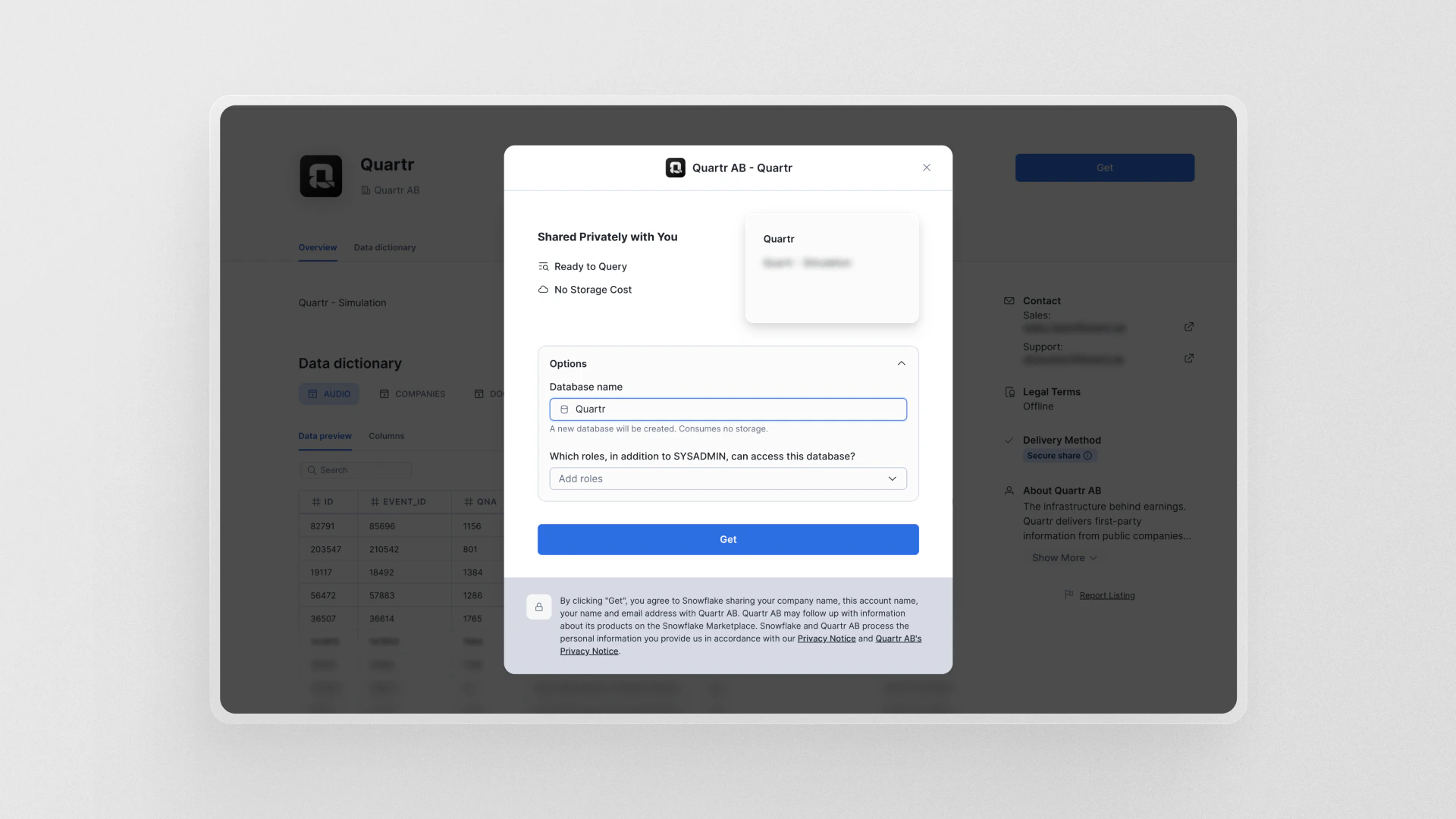
ACCOUNTADMIN) that should have access to this database. Click Get to confirm.8
Dataset ready to use
A Ready to Use confirmation will appear. Click Query Data to open a worksheet with the database pre-selected, or click Done to finish.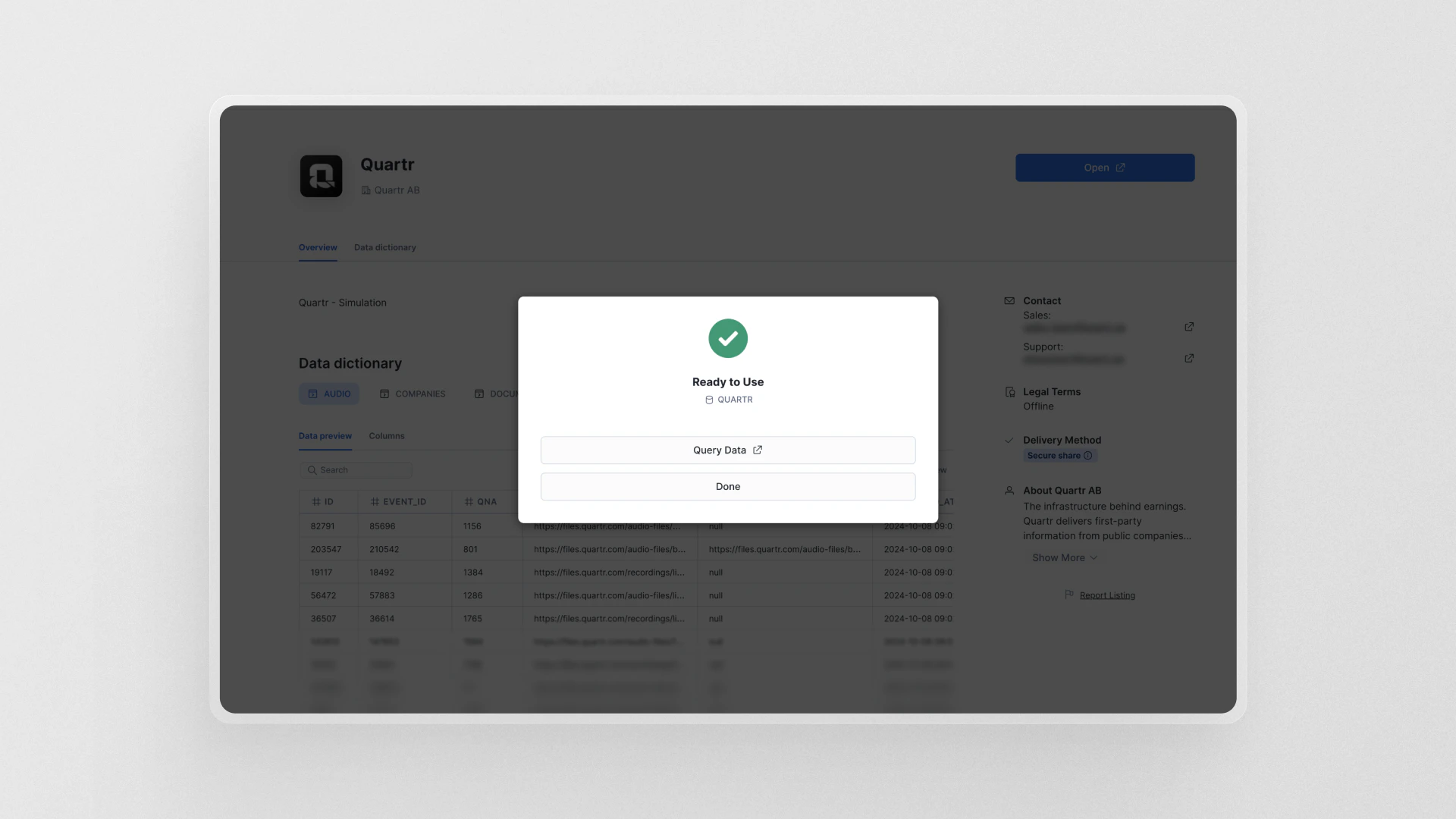
9
Verify your setup
Run the following query to confirm everything is working. Replace
<db_name> with the database name you set in the previous step.