Newsroom

How to get the most out of Quartr MCP

Quartr MCP connects Claude, ChatGPT, and Copilot to everything said and published by 17K+ public companies. Transcripts, filings, reports, slides, and financials, read and cited straight from the source.

The guide walks through six ways to use it:

  • Modeling and research. Build valuation models, research reports, and client material from a single command.
  • Post-earnings checks. Compare reported numbers and management commentary with your model and thesis.
  • Earnings and meeting prep. Surface forward-looking statements, KPI shifts, and contradictions before a call.
  • Read-across and themes. Your watchlists carry into your AI client, so you can track a theme across your coverage.
  • Scheduled research. Get daily transcript digests and guidance alerts without the manual work.
  • Your other tools. Test your own notes and sell-side research against what companies actually said.

It ends with how to connect Quartr in each client. MCP access is included in Quartr Pro at no extra cost.
Semantic search

Semantic search

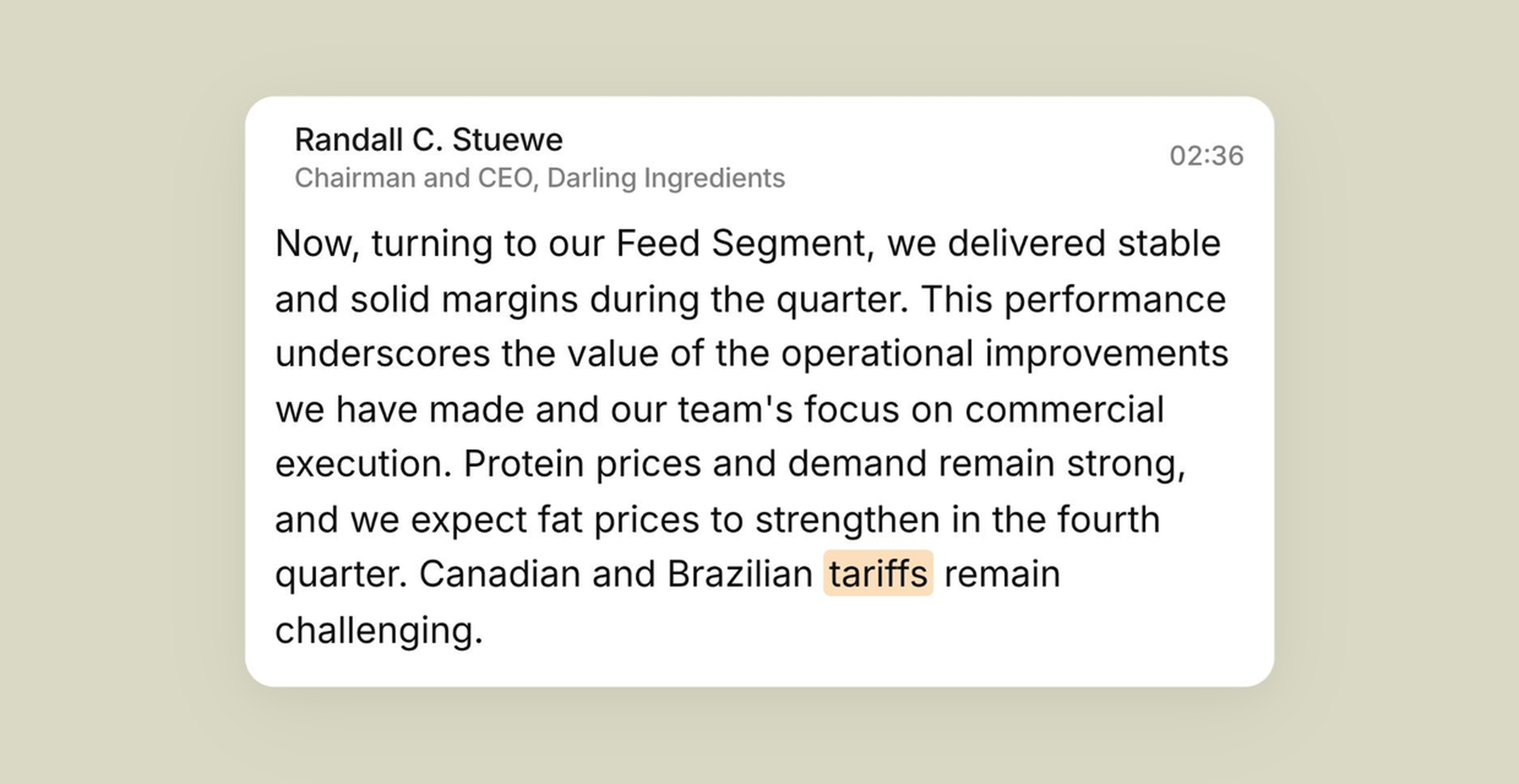
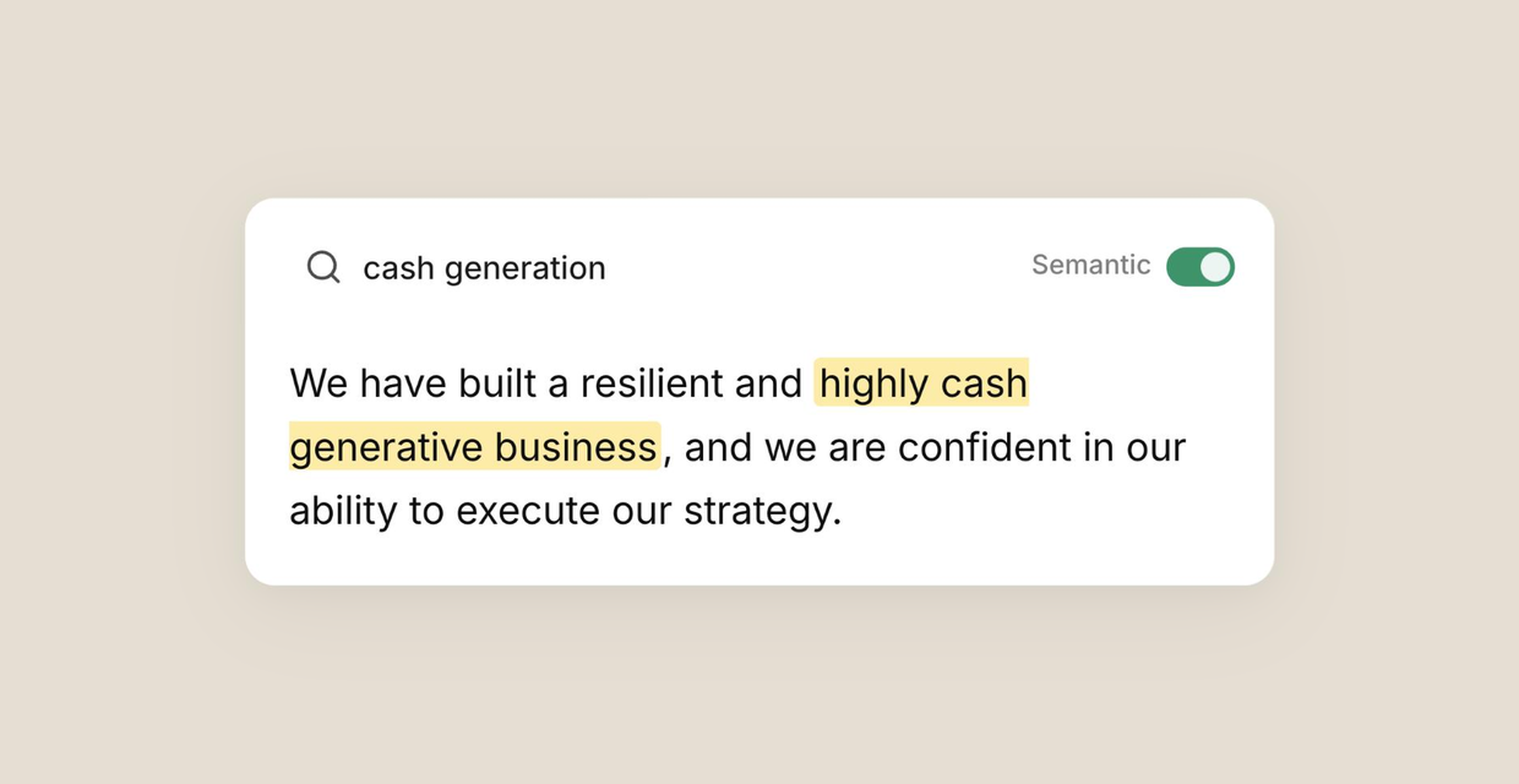
Semantic search is now available for transcripts: search by what you mean, not just what you type, and see the relevant passages instantly.

You'll find it in the transcript viewer.

Keyword alerts, now on live

Keyword alerts, now on live

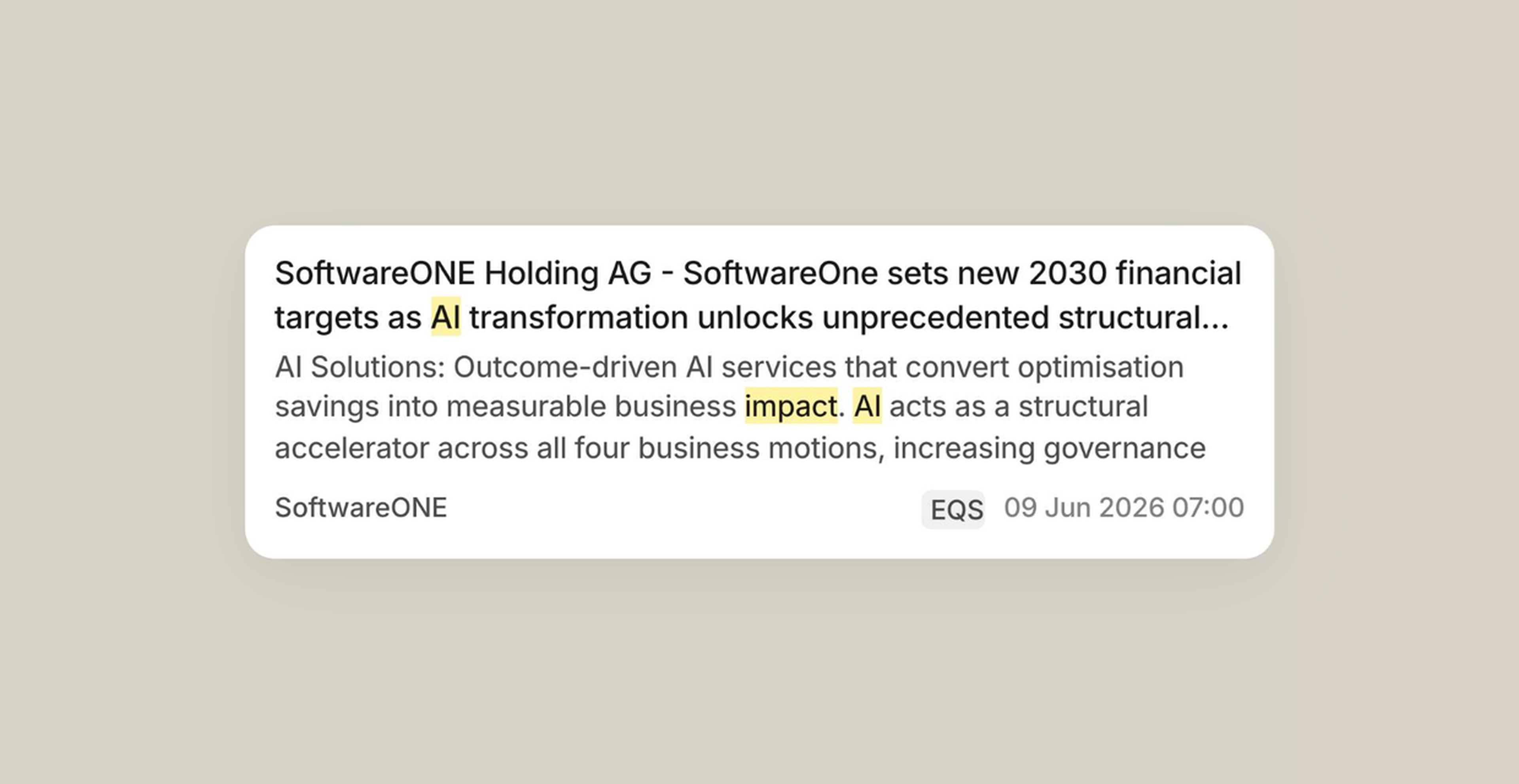
Keyword alerts now trigger during live transcripts. Get notified the moment a keyword comes up, not after the call ends.

You'll only be notified on the first hit within a document.

Event queue

Event queue

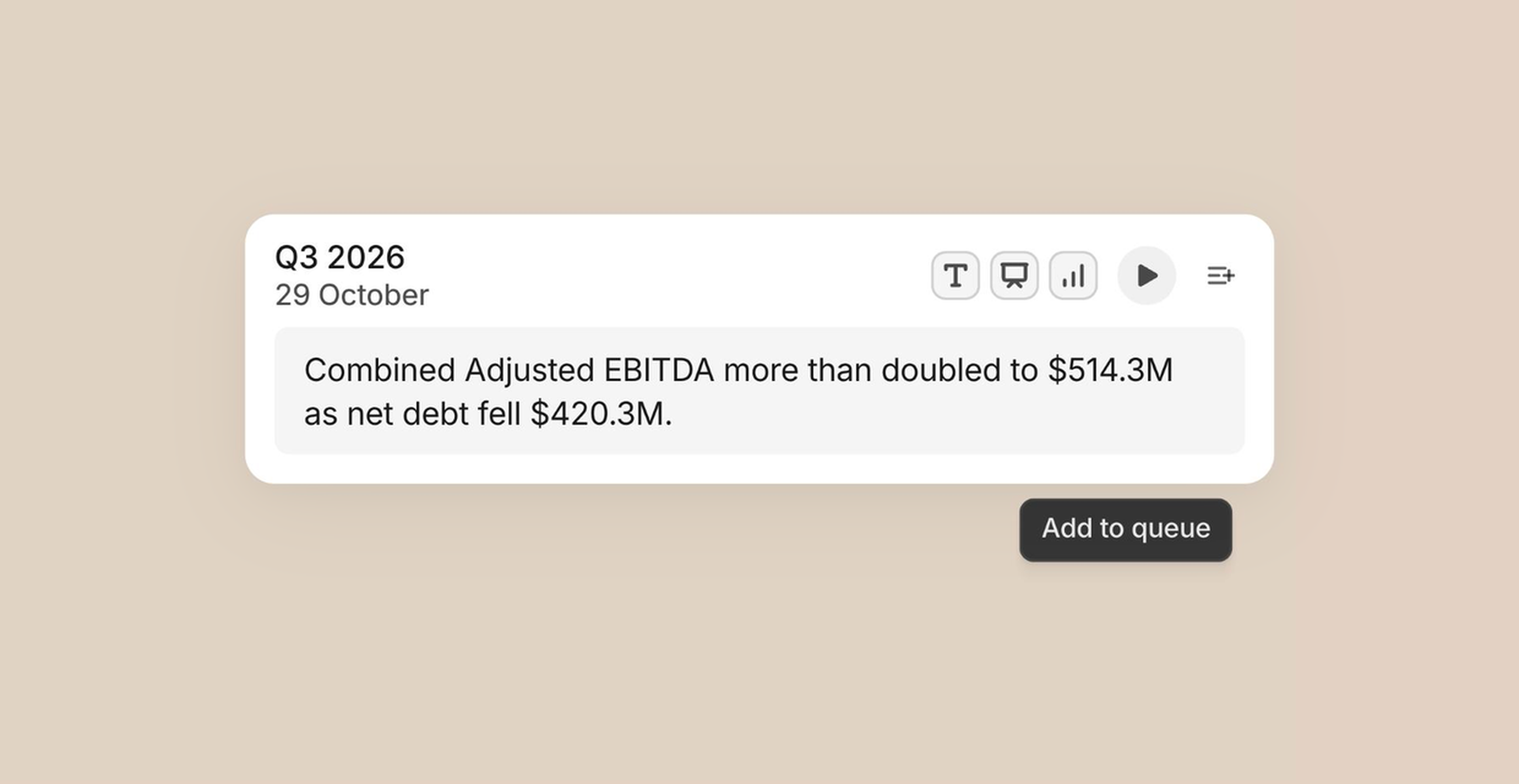
Queue up earnings calls and events you're interested in listening to later, and pick up right where you left off, whether you're on Quartr Pro or the Quartr Mobile app. Your queue and listening progress stay in sync across devices.

Automations

Automations

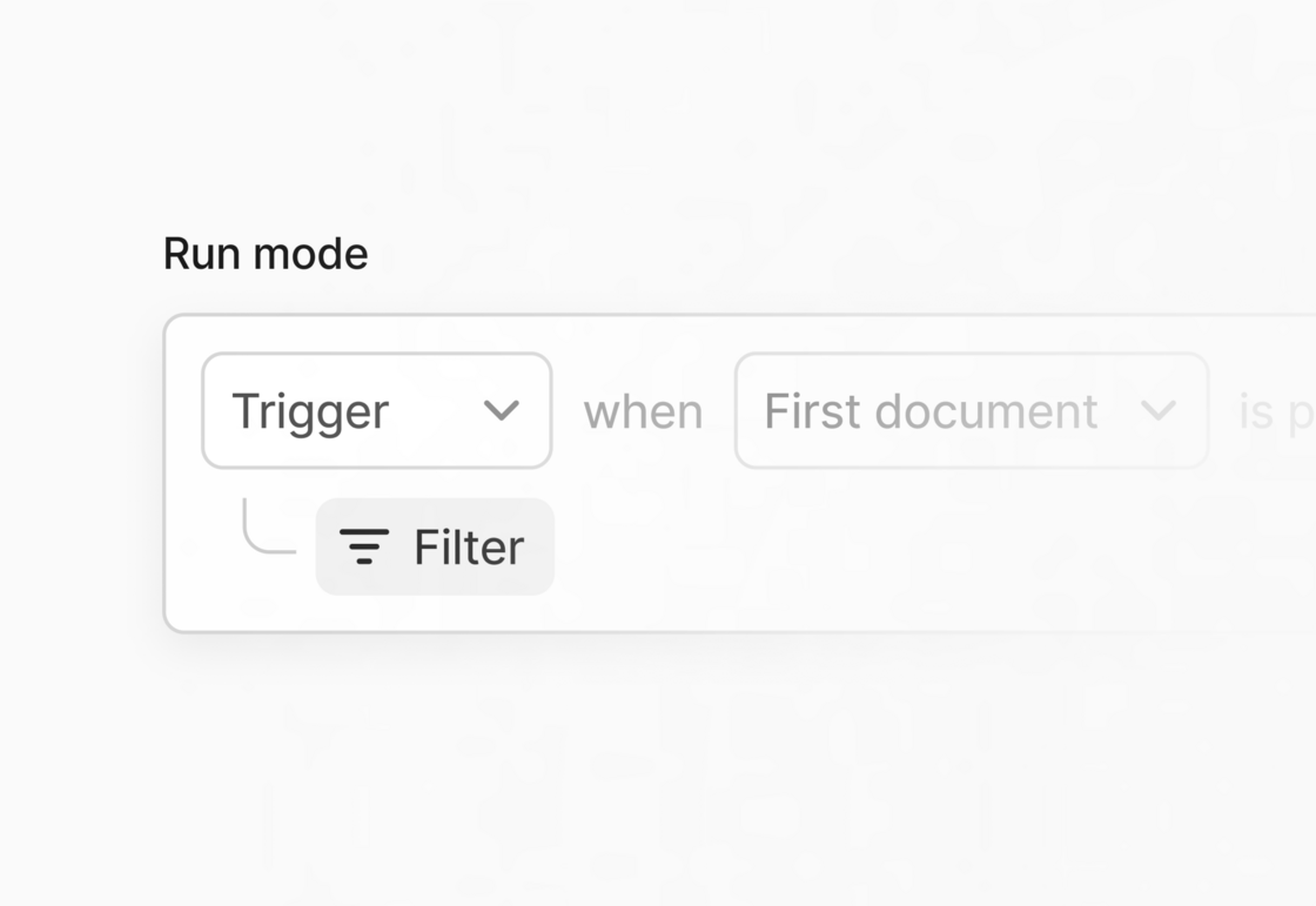
Set up automated research tasks on public companies. Automations run on a schedule you set, or the moment a company reports earnings or publishes new documents.

Each automation runs your own prompt, so the output covers exactly the companies and signals you track.

Keyword alerts, upgraded

Keyword alerts, upgraded

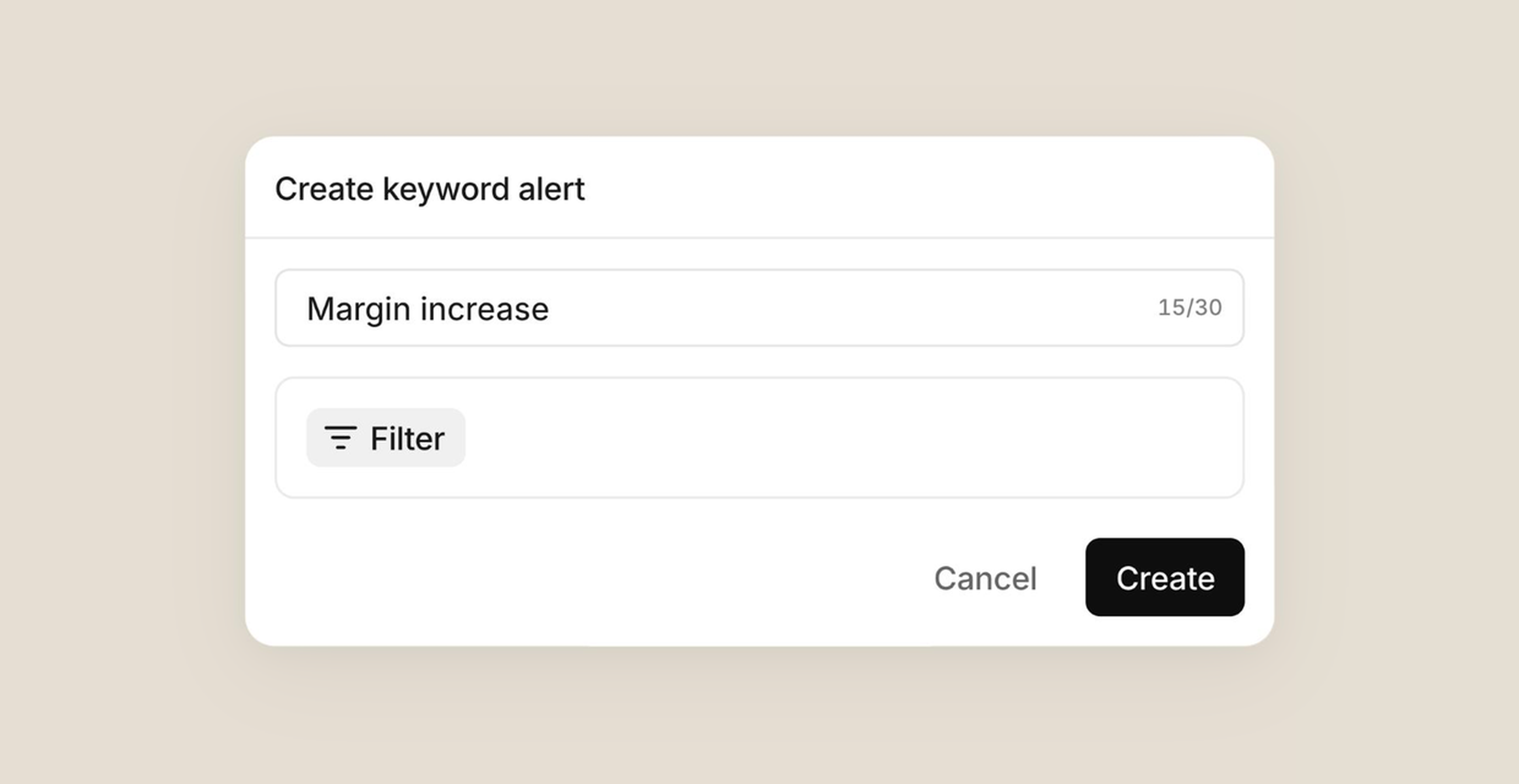
Keyword alerts now support more granular targeting. When setting up an alert, scope by:

  • All companies, a watchlist, or specific companies
  • Event type
  • Document type

You can also create keyword alerts with these parameters directly from chat.

Mentions, rebuilt

Mentions, rebuilt

Mentions have been rebuilt on a new technical foundation — more accurate, and more useful.

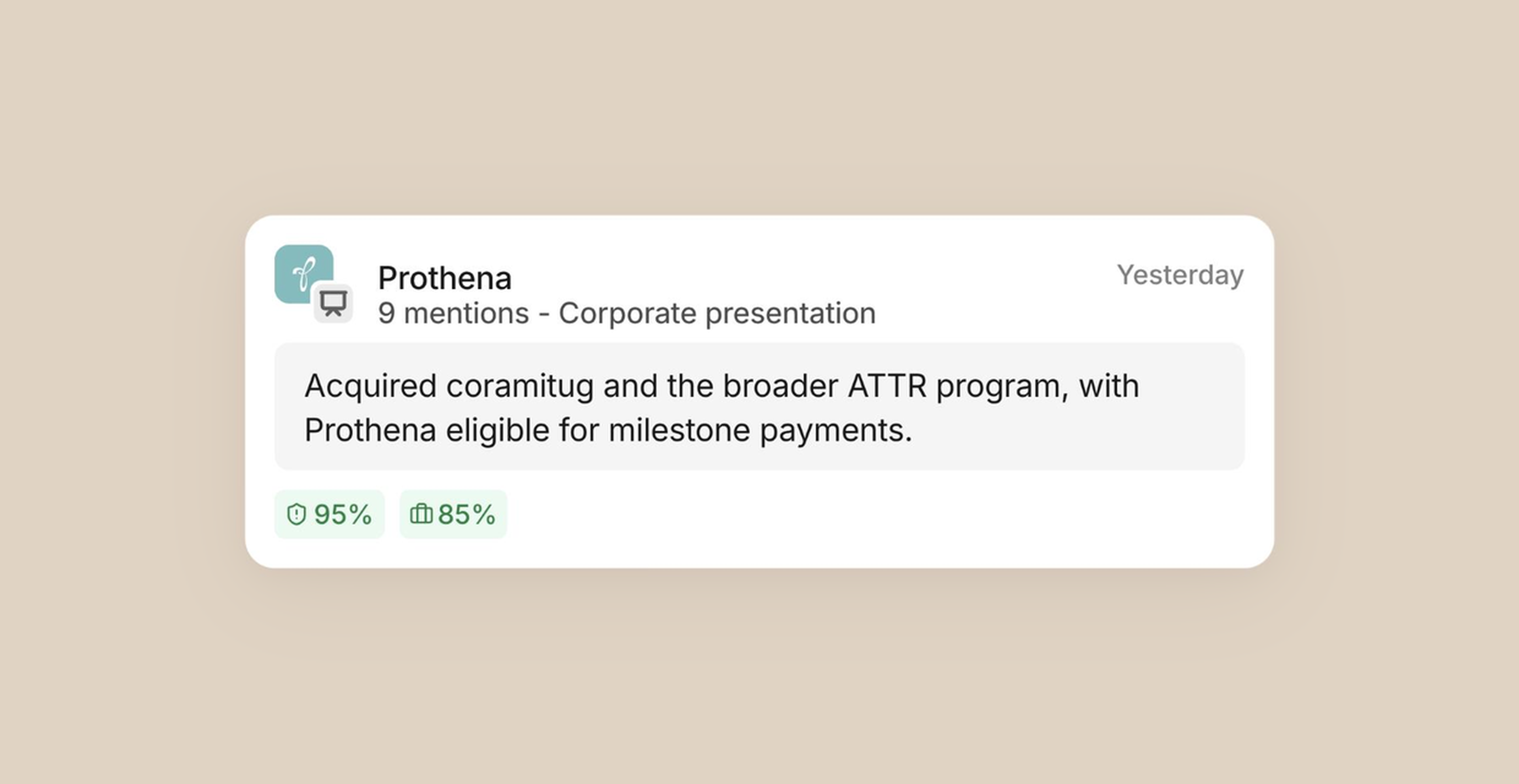
False positives are filtered out and each mention now includes a summary so you can assess context at a glance without opening the source.

Mentions have moved to Company pages. And you can now reverse the direction of mentions: see not only which companies have mentioned a company you follow, but also which companies that company has mentioned.

Events & Documents

Company pages now have dedicated tabs for Events and Documents, each with their own filtering options. As filing coverage expands, the separation keeps things clear, and with dedicated filters in each tab, narrowing down to what's relevant takes seconds.

Watchlist filter - Home

Watchlist filter - Home

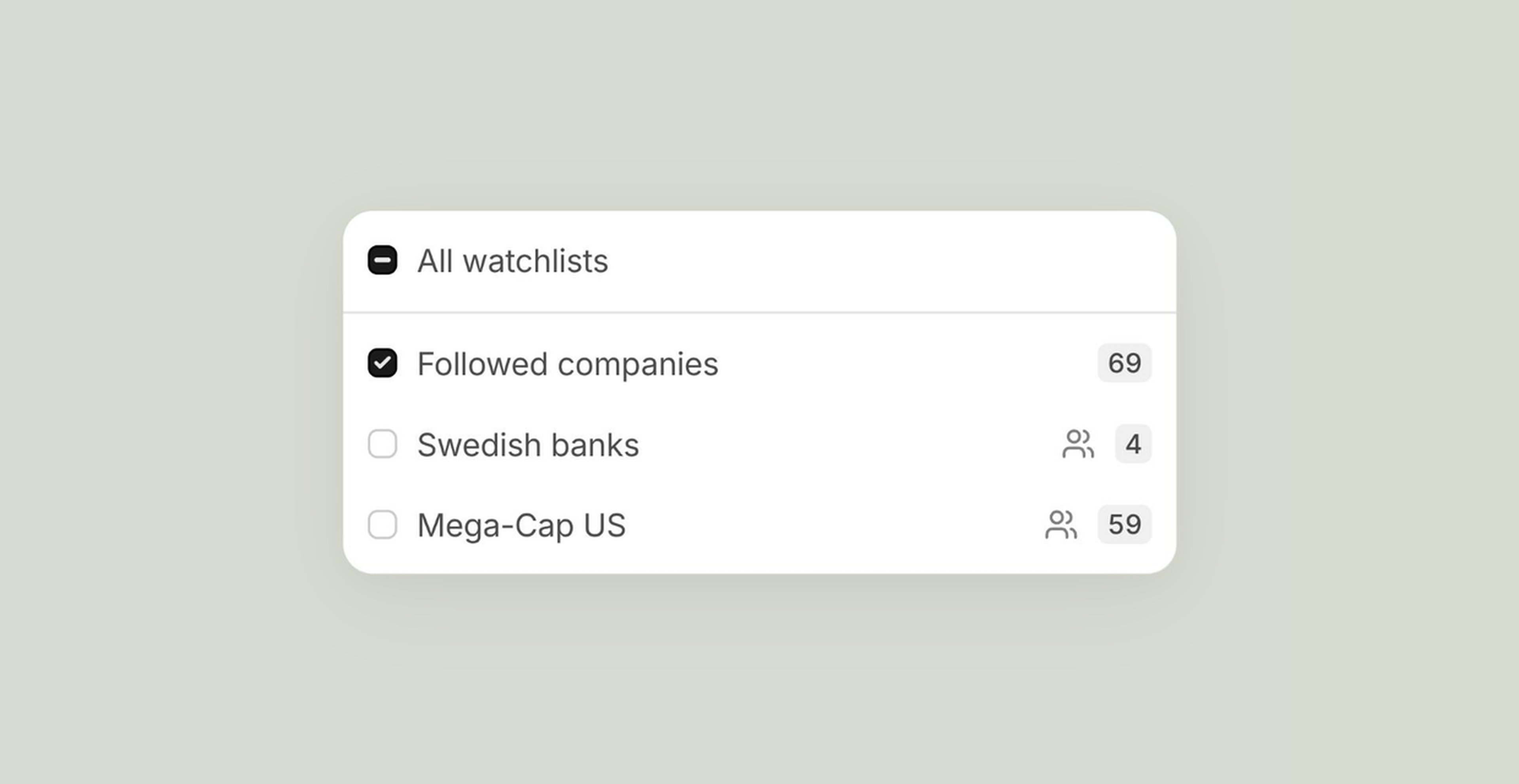
Home can now be filtered by Watchlist, giving you more flexibility in how you shape your Home experience. Your selection is saved and persists across sessions.